


Business Central permissions are the rules that say which people can view, create, edit, delete or run which parts of the system. They matter in every business that has more than one person touching the numbers, and that is nearly all of them. The good news: you do not need to be technical to get them right. You need a clear picture of who does what, and a setup that mirrors it.
Does your system feel like this?
- 01Everyone got the all-access role "just to get started". That was two years ago.
- 02A new hire waits days because nobody is sure which permissions the role needs.
- 03One person can add a vendor, approve the invoice and release the payment. Alone. On a Friday.
- 04Finance asks "who can see our vendor bank details?" and the answer is "give us a week to check every user".
- 05People keep hitting "you do not have permission" errors, so administrators hand out broader access until the complaints stop.
These problems appear in every size and type of company, from a five-person trading business to a multi-site manufacturer, a nonprofit or a clinic. They rarely come from the software. They come from access being granted one favor at a time instead of by design.
What are permissions in Business Central?
Think of an office building. Your licence gets you through the front door. Permissions decide which rooms your keycard opens, and whether you may only look inside, move things around or knock down a wall.
Business Central checks this constantly and quietly. For example, when someone posts a sales document, the system checks whether they are allowed to modify the sales lines behind it. If not, the action stops. Users also need at least one permission set to get in at all.
An ERP with no permissions is like a bakery with no door: very welcoming, and by Friday nobody knows where the cash went.
The four building blocks
Most confusion disappears once you separate these four things.
- 01Who — User and licence: in Business Central online, users are created in the Microsoft 365 admin center, then imported. The licence assigned there sets their starting permissions.
- 02What they can do — Permission set: a named bundle of permissions, like "Purchasing" or "Warehouse". Sets are the building block you manage day to day.
- 03How you assign it — Security group: a group from Microsoft Entra ID (cloud) or Windows Active Directory (on premises). Attach permission sets to the group and members inherit them.
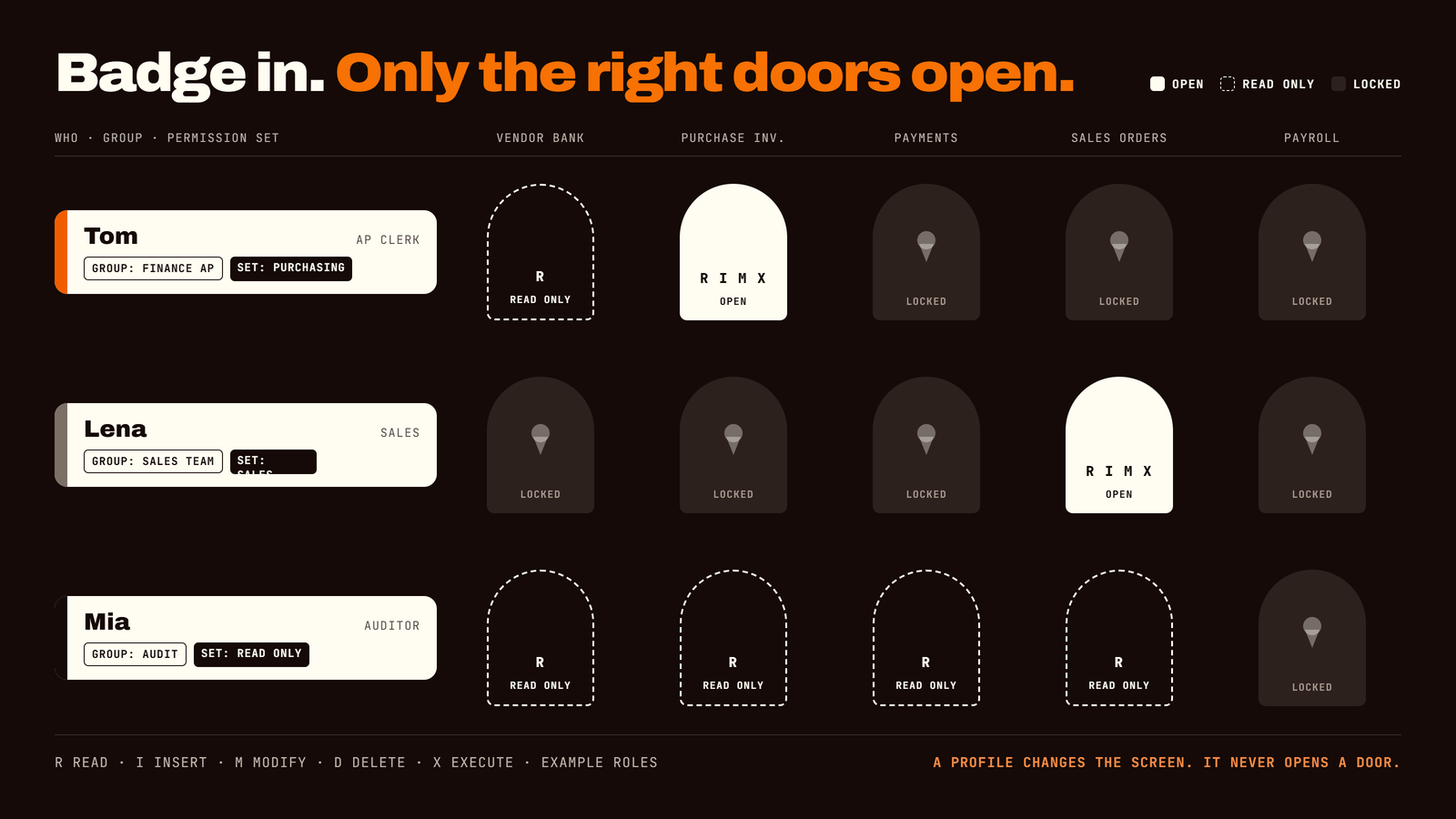
- 04What they see — Profile: shapes the screens and menus a person sees. It is about convenience, not security. A profile never grants or blocks access to data.
Profiles decide what the screen looks like. Permission sets decide what the person can actually do. Only one of them stops mistakes.
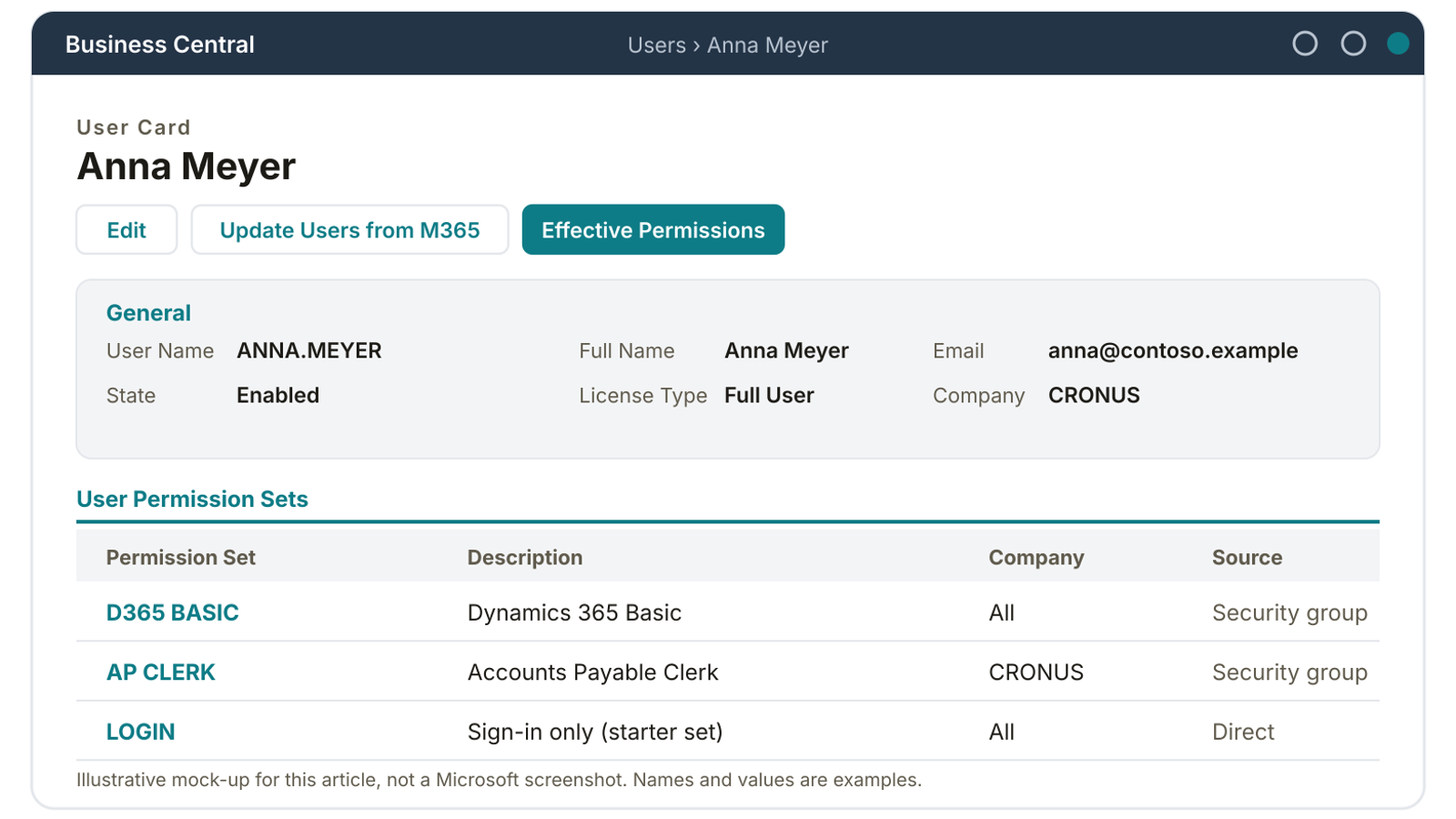
Here is where this lives on a real user. The user card shows who the person is and which permission sets they hold, whether assigned directly or inherited from a security group.
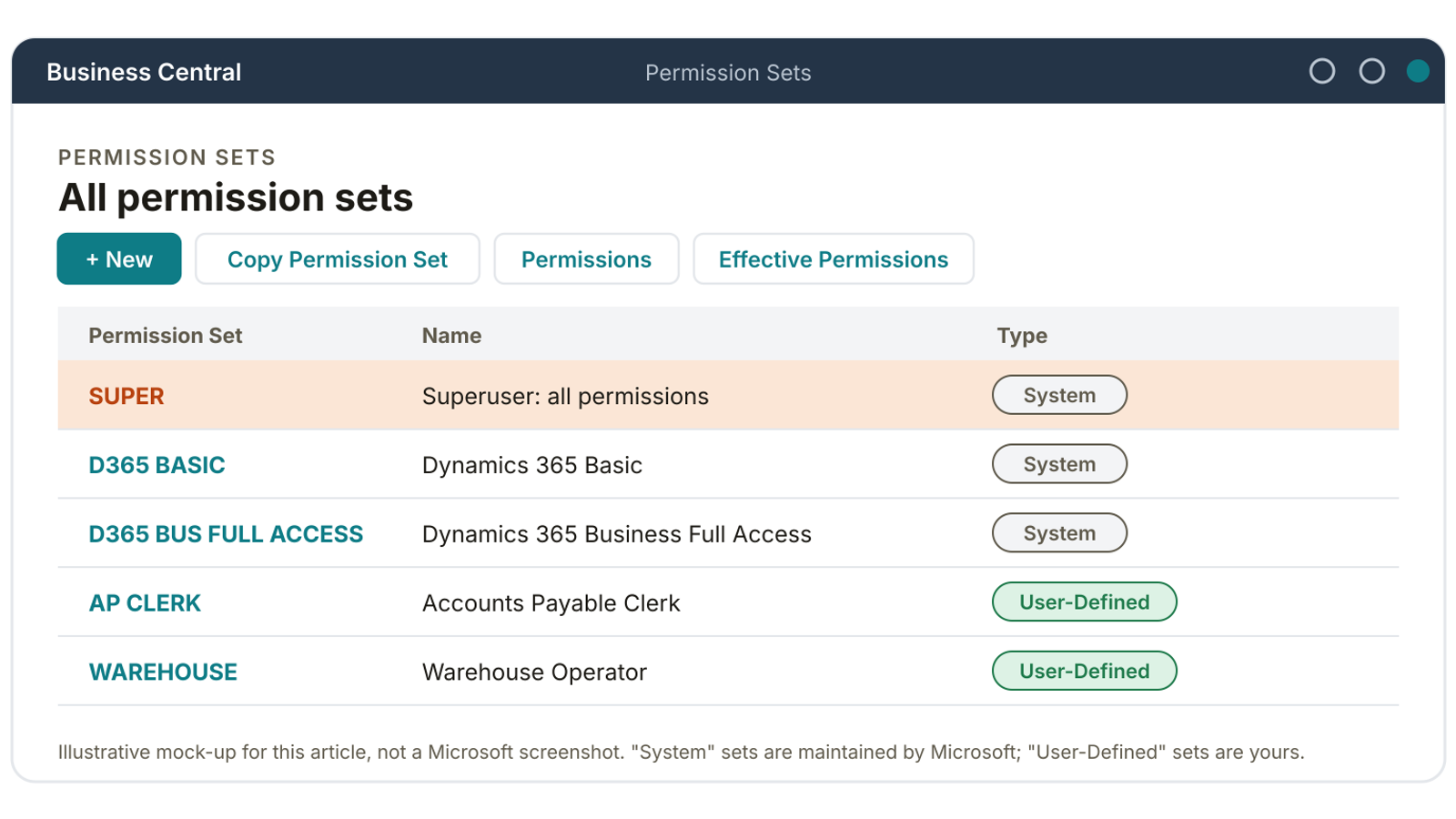
The Permission Sets page lists every set in the system. Microsoft maintains the "System" sets; "User-Defined" sets are yours.
Five levels of access, in plain words
Inside a permission set, each piece of data gets its own level of access. There are five, and they stack up from harmless to serious.
Example pattern for purchase and sales records (filled means allowed; your needs will differ):
- 01Read — view data: allowed for Auditor, Sales and AP Clerk.
- 02Insert — create new records: not for Auditor; allowed for Sales and AP Clerk.
- 03Modify — edit existing data: not for Auditor; allowed for Sales and AP Clerk.
- 04Delete — remove records: not allowed for any of the three.
- 05Execute — run actions and processes: not for Auditor; allowed for Sales and AP Clerk.
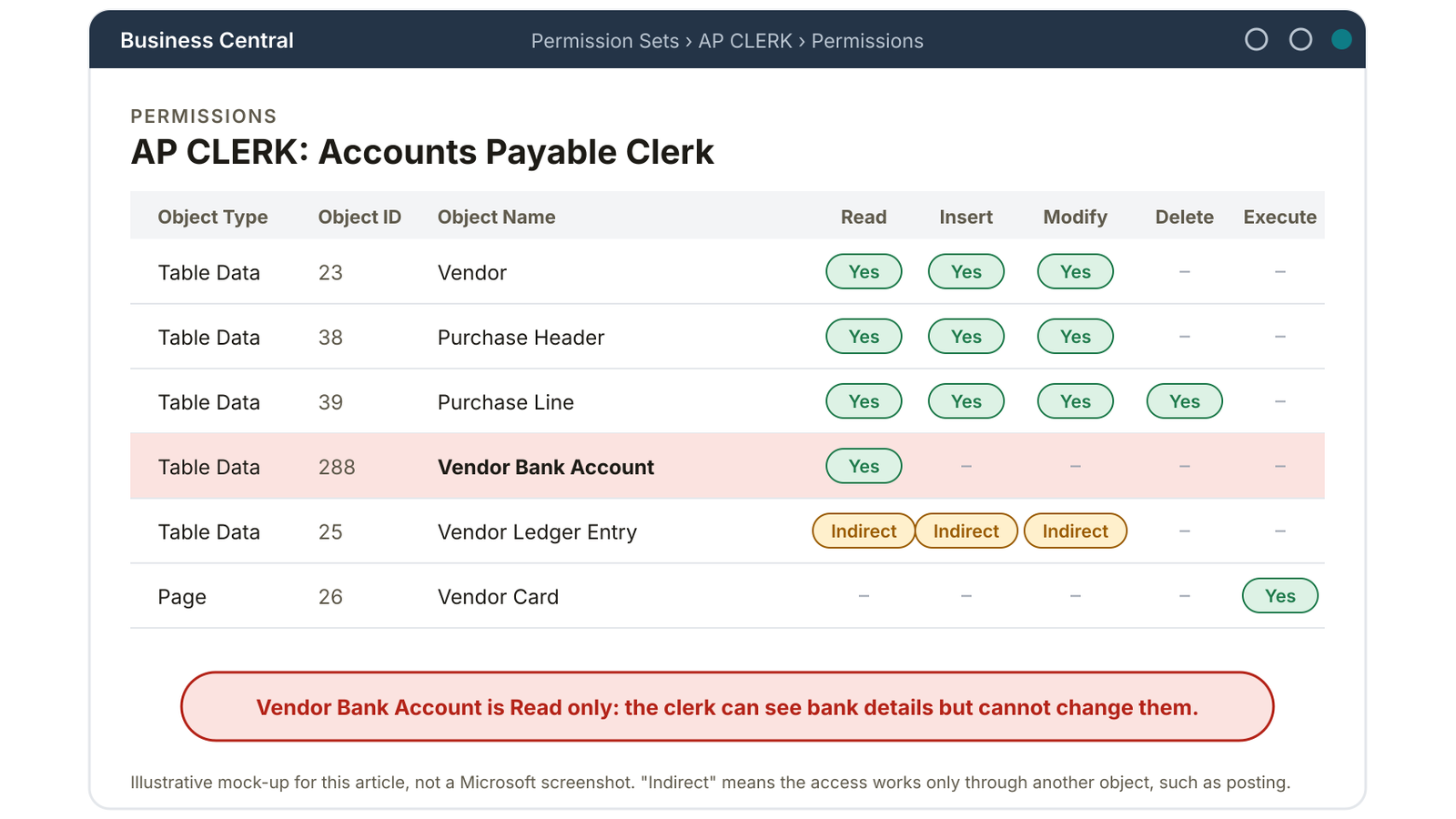
Notice that the auditor can see everything and change nothing. That is the whole point of separating "Read" from the rest. In the permission set editor, each object gets its own row and its own level:
Meet SUPER, the master key
SUPER is the permission set that opens every door. Business Central requires at least one user in each database to hold it, it cannot be edited, and it is needed for some administrator tasks, such as updating users from Microsoft 365.
So you cannot get rid of it. You can only decide how many people carry it.
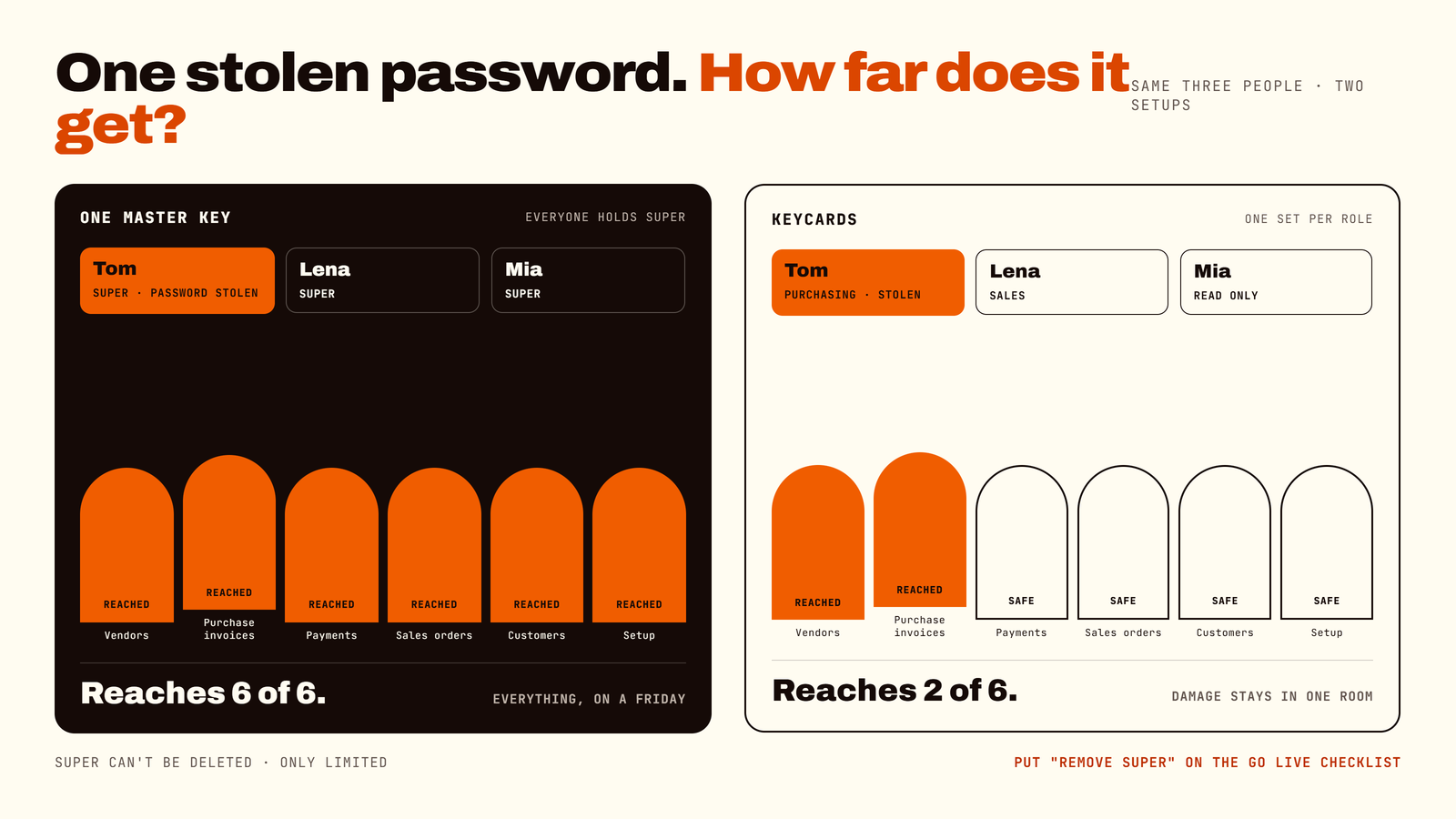
During a rollout, people are often given the all-access role to keep the project moving, and nobody takes it back after go-live. Put "remove SUPER from everyone except named administrators" on your go-live checklist, with an owner and a date.
The implementation-rush trap
Handing SUPER to the whole finance team is like giving every guest at the party the key to the safe, so they can "find the napkins".
Permission sets that survive upgrades
Business Central ships with standard permission sets maintained by Microsoft, and you can copy them to create your own, called user-defined sets. A few facts that save pain:
- 01Editing a set changes it for everyone who has it. Test with one or two people first.
- 02Combine, then trim. Build a role by stacking Microsoft's sets (a baseline plus the area the role works in) and add small, deliberate exceptions. When your set includes a system permission, it picks up Microsoft's changes automatically, so upgrades cause fewer surprises.
- 03Let the system write the first draft. A practical method is permission recording: start a recording, perform the real business steps, and save the result as a new set. Then review it, because recordings capture what you did, not what you should be allowed to do.
- 04Keep a minimal sign-in set. A dedicated LOGIN set grants only what is needed to sign in, which is handy for people who should start with nothing and earn the rest.
Security groups: change it once, in one place
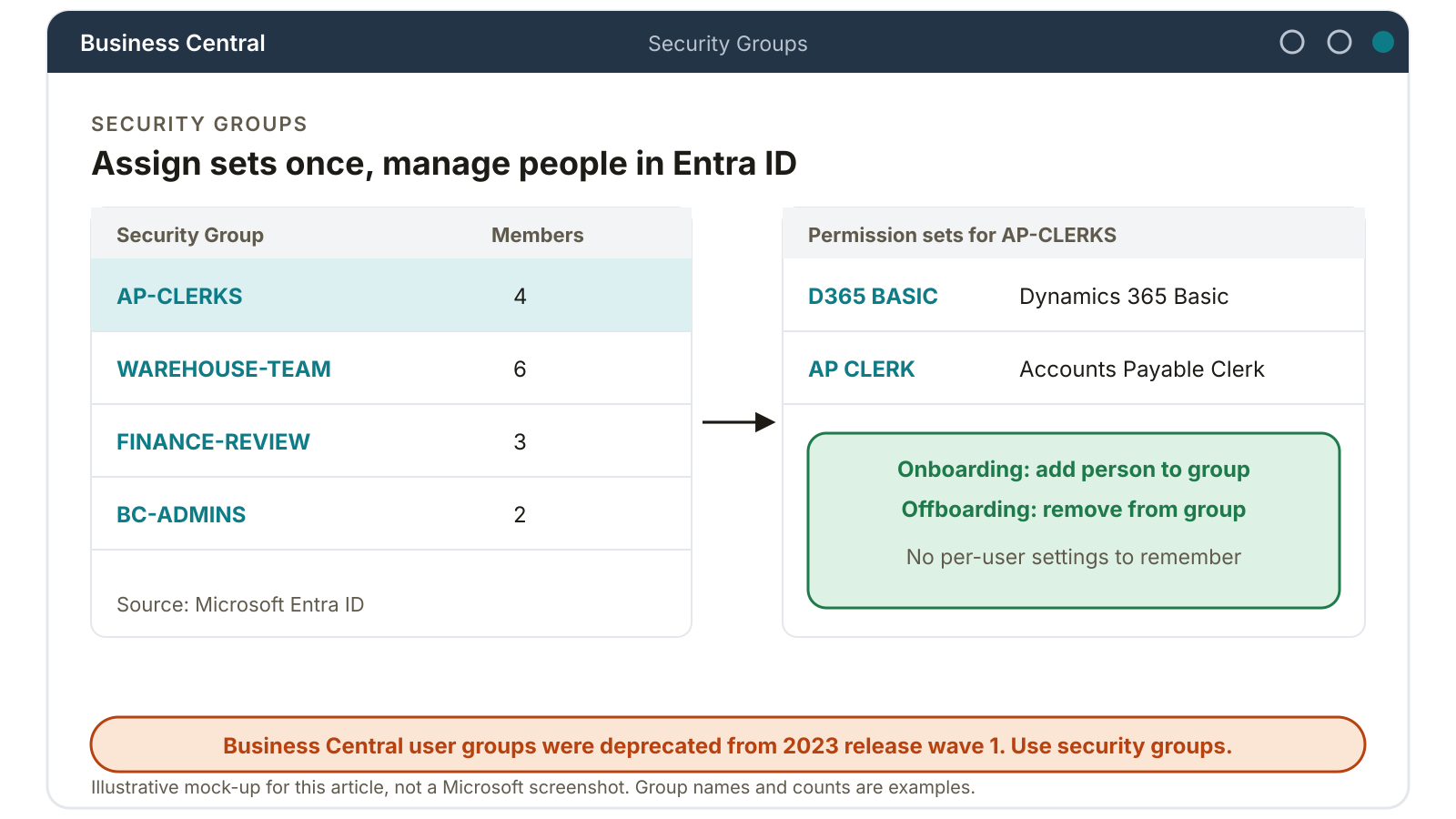
Assigning permission sets person by person works, until you have thirty people and a reorganization. Security groups fix that. You attach permission sets to a group, then manage who is in the group where you already manage people: Microsoft Entra ID for the cloud, Windows Active Directory on premises.
This also replaces an older approach. Business Central's own user groups were deprecated from 2023 release wave 1, because security groups do the same job and reach beyond Business Central. If you still rely on user groups, plan the move.
Onboarding becomes: add the person to the right group. Offboarding becomes: remove them. Nobody has to remember seven separate settings.
See what a user really has
Permissions are only trustworthy if you can check them. Business Central gives you two views:
- 01Effective Permissions. Open a user card and view which permissions the person has and which permission set each one comes from. This is your first stop for "why can Sam see this?"
- 02Permission overview. Newer releases add a way to search by table or object and see every permission set that includes it, instead of opening users one by one. It is especially useful for sensitive data such as vendor bank accounts, which can ride along inside broader sets.
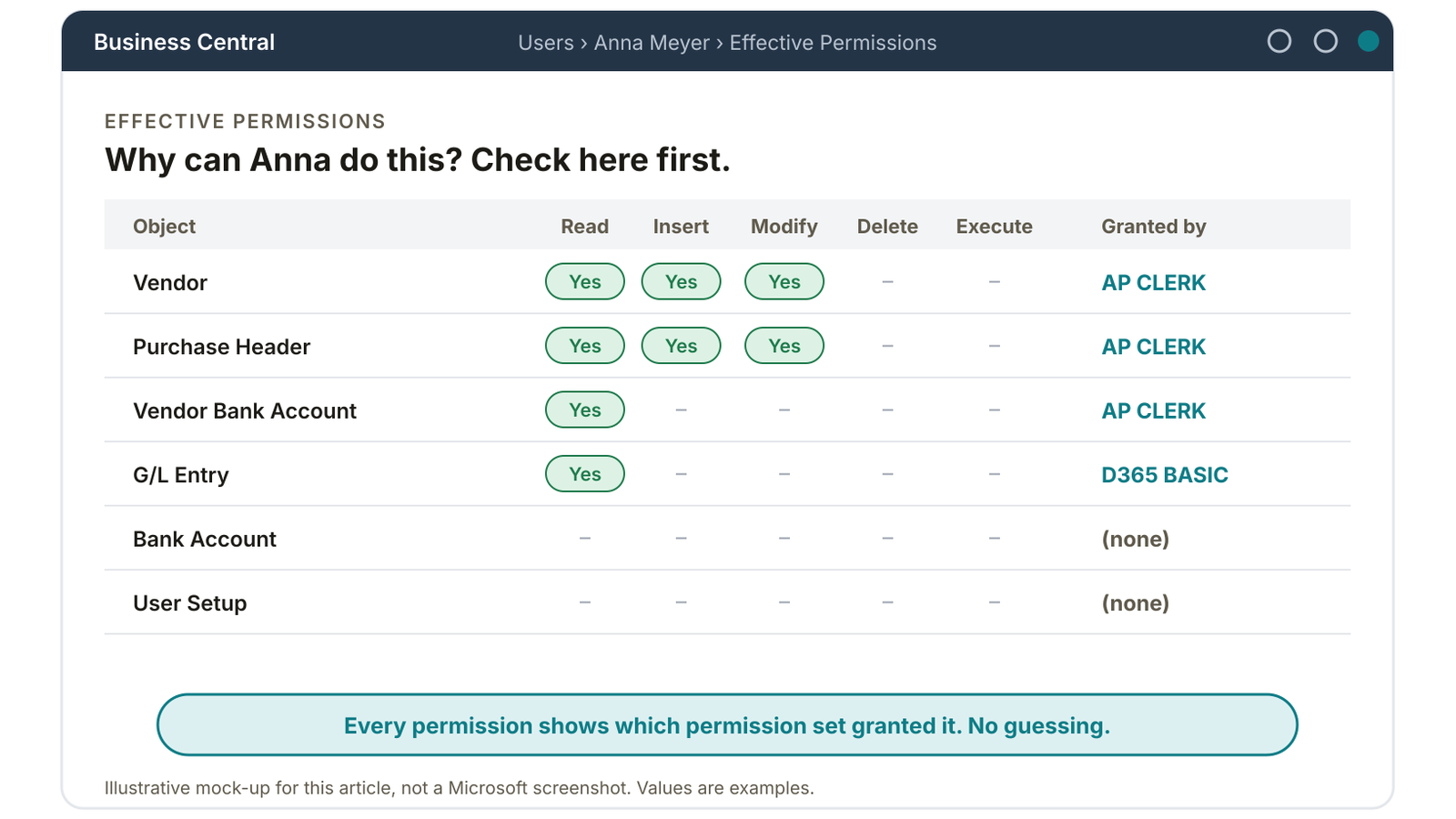
Whichever you use, follow the same loop: look, copy the set you want to change, edit the copy, test, then roll out.
Segregation of duties: why one person should not do everything
Segregation of duties means no single person controls a sensitive process from start to finish. It is the oldest fraud and error control in finance, and in Business Central it is enforced through permission sets, not profiles.
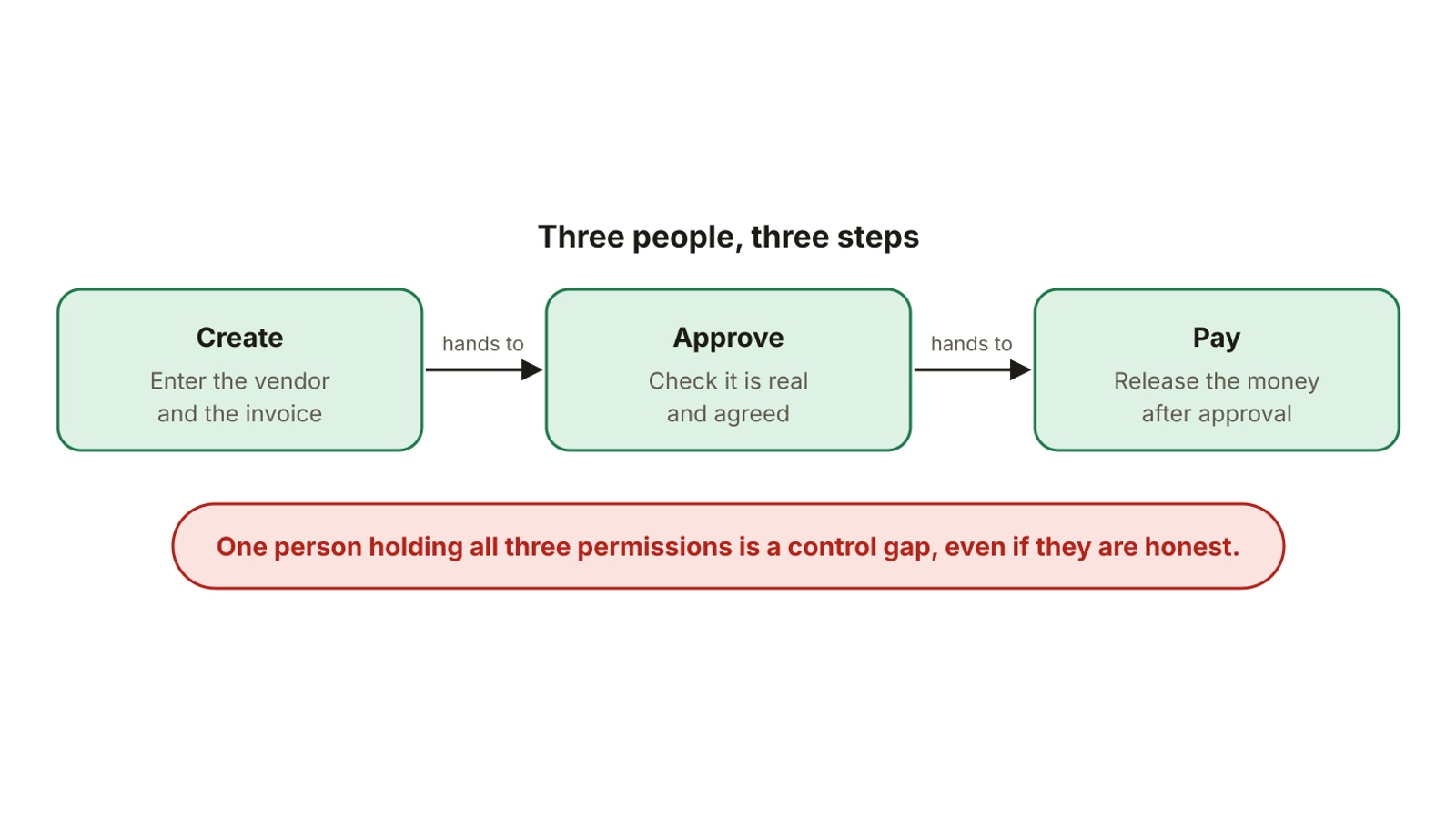
In smaller teams, where "three people" is a luxury, split what you can: for instance, the person who changes vendor bank details should not be the one who releases payments. Where a split is impossible, add a review step, such as a monthly check by the owner.
Starting points by role
Every business is different, so treat this as a conversation starter for your own role map, not a rulebook.
- 01Accounts payable clerk — usually needs: enter purchase invoices, view vendors. Usually should not have: approve own invoices, release payments, change vendor bank details alone.
- 02Sales order processor — usually needs: quotes, orders, customer records. Usually should not have: edit setup or post to the general ledger directly.
- 03Warehouse operator — usually needs: receive, pick, ship. Usually should not have: see financial ledgers or customer pricing agreements.
- 04Accounting manager — usually needs: read broadly, review and post. Usually should not have: system-level setup and user administration.
- 05Auditor or executive — usually needs: read-only access to what they review. Usually should not have: insert, modify or delete anything.
- 06System administrator — usually needs: manage users and setup, SUPER when needed. Usually should not have: daily posting and approvals.
What your business gains
- 01Fewer costly mistakes. People can only change what their job requires.
- 02Easier audits. You can show who can do what, and prove the split of duties.
- 03Faster onboarding. A new hire joins a group and starts work, instead of waiting for a ticket.
- 04Protection for sensitive data. Bank details, payroll and customer records stay with the people who need them.
- 05Calmer upgrades. Sets built from Microsoft-maintained building blocks cause less retesting.
- 06Room to grow. New departments or entities slot into an existing pattern.
Best practices that work for any business
- 01Map roles before touching settings. List what each job really does. Involve finance, operations and IT.
- 02Apply least privilege. Grant the minimum that lets the job get done, and add more only for a clear business reason.
- 03Limit SUPER. A few named administrators, used only when needed, reviewed regularly.
- 04Assign through security groups. People move in and out of groups, not in and out of ten settings.
- 05Build roles from Microsoft's sets. Copy, combine and trim instead of writing everything from scratch.
- 06Separate create, approve and pay. Protect vendor bank details with extra care.
- 07Test as the user. Check a role with a test account on a sandbox before it reaches production.
- 08Review on a schedule. Check access after reorganizations, role changes and at least once a year.
- 09Write it down. One page: each role, its permission sets, its owner. Future you will be grateful.
Common mistakes to avoid
- 01SUPER for everyone "temporarily" — instead: named administrators, reviewed regularly.
- 02Fixing every permission error by widening access — instead: find the exact missing permission and add only that.
- 03Editing Microsoft's standard sets directly instead of copying — instead: copy a set, edit the copy, test it.
- 04Forgetting to remove access when people change roles or leave — instead: tie access to security groups and HR events.
- 05Assuming a profile restricts data — instead: use permission sets for control, profiles for convenience.
- 06One person owning create, approve and pay — instead: split the steps, or add a review where you cannot.
How to get started
- 01List your roles. Not job titles, but what people actually do in the system.
- 02Check who holds SUPER today. Reduce it to the people who truly administer the system.
- 03Create security groups per role. One group for each role you listed.
- 04Build one permission set per role. Start from Microsoft's sets, or from a recording, and trim.
- 05Attach sets to groups. Then add people to groups.
- 06Test in a sandbox. Run the real tasks as each role and note what fails or feels too open.
- 07Go live, then review. Check access after the first month and again every year.
A realistic scenario
Illustrative composite of patterns we often see. It is not a named client.
A growing distributor went live with Business Central and gave its whole finance team the all-access role to hit the deadline. Months later, a year-end review found one team member had created a vendor, updated its bank details and approved the invoice. There was no fraud, only a rushed Friday. But the auditor called it a control gap, and the owner could not answer "who else can do that?" without opening every user.
The fix took a short project: map five roles, create five security groups, build five permission sets from Microsoft's standard ones, trim vendor bank access to a small group, and cut the all-access role to two named administrators. New hires now start by joining a group. The owner can answer the "who can do that?" question in minutes, and the next audit became a conversation instead of a scramble.
Frequently asked questions
- 01What are permissions in Business Central? Permissions define what each user can do with Business Central data: read, insert, modify, delete or execute. They are grouped into permission sets and assigned to users or security groups.
- 02What is a permission set? A named bundle of permissions. Every user needs at least one before they can use Business Central. Microsoft supplies standard sets, and you can copy them to build your own.
- 03What does the SUPER permission set do? It gives full access to the system and cannot be modified. At least one user per database must hold it, but it should be limited to a few administrators and used only when needed.
- 04Should I use user groups or security groups? Security groups. User groups were deprecated from Business Central 2023 release wave 1. Security groups come from Microsoft Entra ID or Windows Active Directory, and permission sets can be assigned to them.
- 05How do I see what a user can actually access? Open the user card and use the Effective Permissions page. It shows each permission and the permission set that grants it.
- 06What is the difference between a profile and a permission set? A profile shapes the screens and menus a user sees. A permission set controls the data and actions they can reach. Profiles do not grant or block access.
- 07Do small businesses need to care? Yes. Even a small team benefits from separating who enters, approves and pays, and from keeping the all-access role away from daily work. A good setup is also quick to build for a small team.
- 08What happens if I edit a permission set? The change applies to everyone who has that set. Copy it, edit the copy, and test with a few users first.
Your 2-minute check
Tick what sounds like you. Two or more means a permissions review is likely to pay off:
- 01More than a couple of people hold the all-access role
- 02Nobody can quickly say who can see vendor bank details
- 03One person can create, approve and pay
- 04New hires wait days for access, or get too much of it
- 05You are rolling out Business Central, or you have outgrown your first setup
Get permissions right before an audit asks.
Thirty minutes with a senior ForgeSolutionz engineer. Bring your current setup, or just your worries, and leave with a written summary of your options. We'll ask which roles and risks matter most to your business, point out quick wins and risks before they get expensive, and give you a clear, jargon-free plan, even if you never work with us.
Book a consultation