


Dimensions are labels you attach to transactions in Business Central, such as department, project, region or salesperson. They let you answer questions like "how profitable is this project?" or "what does each department spend?" without creating hundreds of extra accounts. They are easy to set up and costly to change later, so the design you choose on day one matters more than almost any other finance setting.
Does your reporting feel like this?
- 01Your chart of accounts keeps growing: one travel account for every department, one sales account for every region.
- 02A simple question, such as "how much did this project cost?", needs an Excel sheet and a few hours.
- 03Two people tag the same kind of cost two different ways, so reports never quite match.
- 04Budgets are built one way and actuals are recorded another, so comparing them takes manual work.
- 05Leadership wants numbers by location, product line or customer type, and finance says it would need a new system.
These problems appear in every size and type of business, from a five-person trading company to a multi-site manufacturer. They are usually not caused by the software. They come from the way transactions were categorized when they were recorded. Dimensions are Business Central's built-in answer.
What are dimensions in Business Central?
A dimension is a label you attach to a transaction so that you can filter and analyze it later. Microsoft describes dimensions as a way to analyze entries without needing a separate general ledger account for each category.
A simple way to think about it: the account tells you what the money was for, such as travel expenses. The dimensions tell you who, where, why or for whom, such as which department spent it, in which area, on which project.
Because the labels sit on the transaction, you can slice the same data in many ways. You do not need one account per department, one per region and one per project. You need one account and a few well-chosen dimensions.
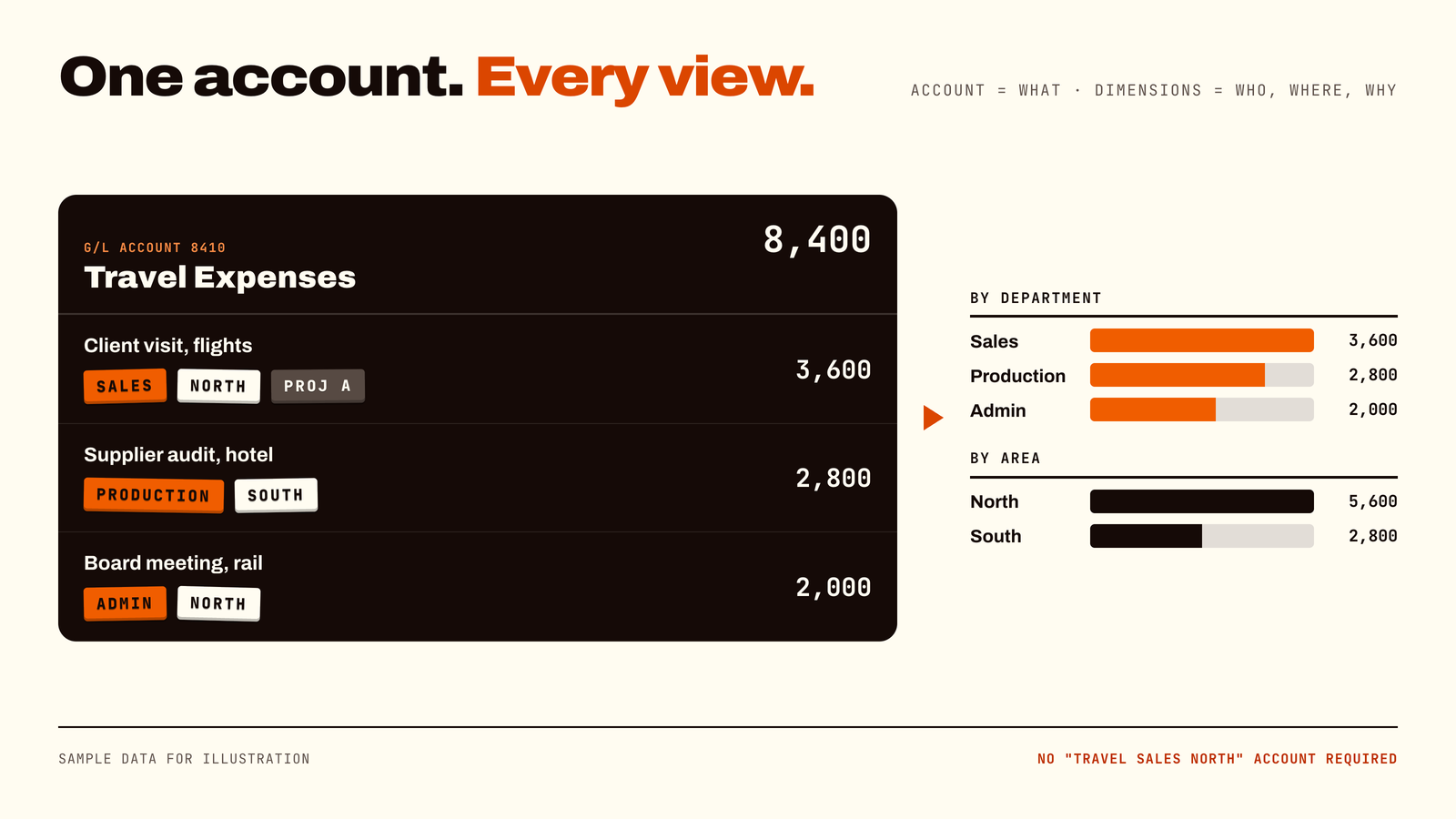
Dimensions and dimension values
A dimension is a category, such as Department, Project or Area. You can create as many as you need.
A dimension value is one option inside a category. Under Department, the values might be Sales, Production and Admin. Values can also be arranged in a hierarchy, for example North America and South America rolling up into a total for the Americas. That lets you report on the detail or on the total.
Global and shortcut dimensions
Business Central lets you pick which dimensions get special treatment.
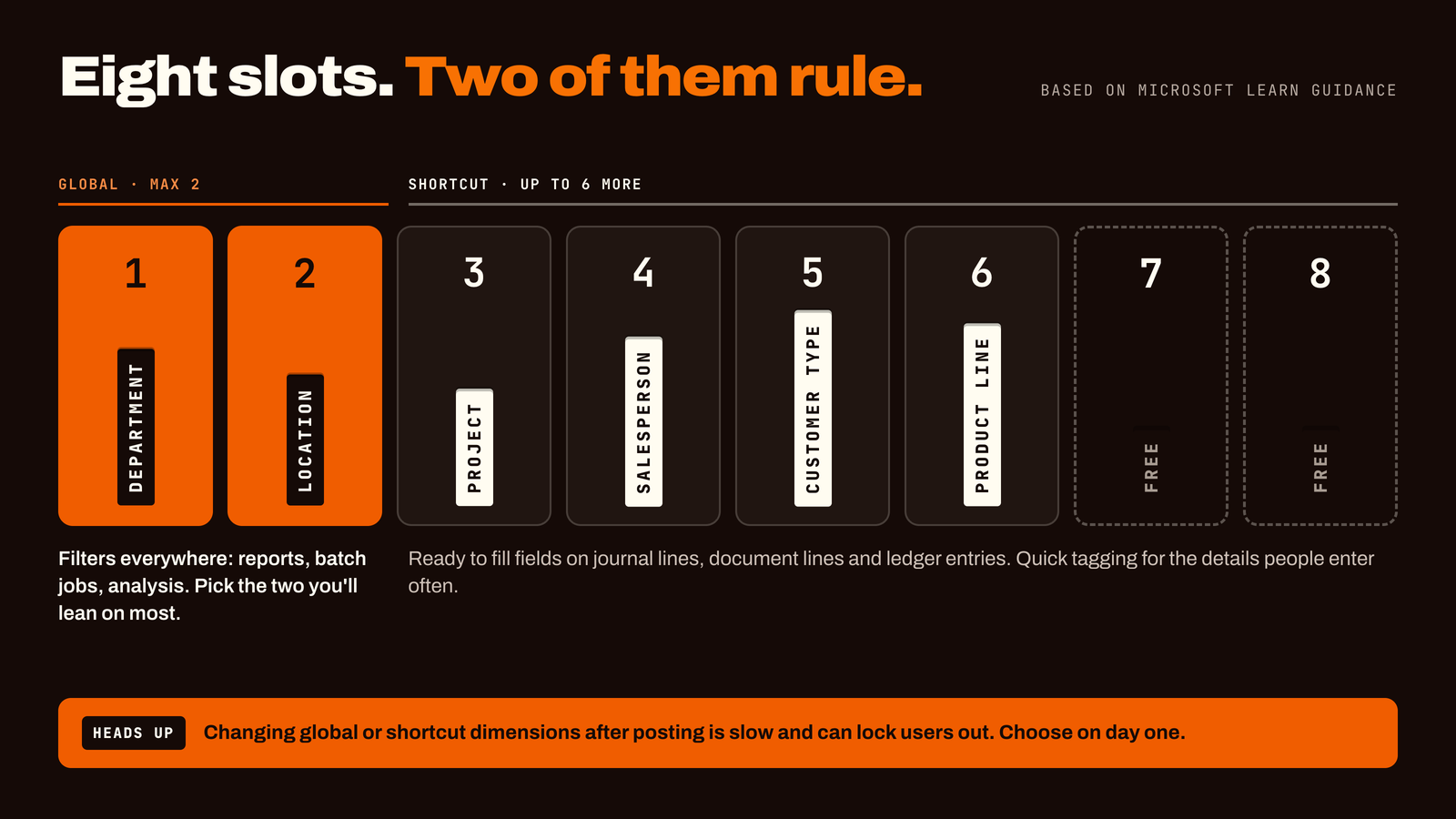
- 01Global dimensions: two at most. These work as filters across Business Central, including reports and batch jobs. Choose the two you rely on most.
- 02Shortcut dimensions: up to eight. These appear as ready-to-fill fields on journal lines, document lines and ledger entries, so users can tag a transaction quickly. The two global dimensions are always the first two of the eight, which leaves up to six more.
Default dimensions
A default dimension is a value that fills in automatically when you enter a customer, vendor, item or account. For example, a particular customer can always carry the Sales department. Users can still change it on the line, so defaults save time without removing flexibility.
When several sources suggest different defaults, for example a customer, an item and a location, Business Central uses priorities you set to decide which wins. Test this before go-live so the result matches what your team expects.
Required values and allowed combinations
- 01Code Mandatory: you can require that a dimension has a value on specific accounts, so entries cannot be posted untagged. Use it where the data feeds real reports, such as income statement accounts.
- 02Dimension combinations: you can block or limit pairs of values that should never appear together, for example a department that does not operate in a certain location. Everything else stays unrestricted.
Dimension sets, behind the scenes
You do not need to manage this part, but it explains why dimensions are efficient. Business Central stores each unique combination of values once, as a dimension set with its own ID, and entries simply point to it. That is why one transaction can carry several dimensions at once without slowing things down.
Analysis by dimensions
Dimensions are the foundation of analysis views, which power recurring performance reports. The more consistently you tag transactions, the more detailed and trustworthy those reports become. If you find a wrong dimension on a posted entry, it can be corrected, and your analysis views can then be updated.
What dimensions can do for different businesses
The same feature adapts to very different needs. A few examples of how businesses use it:
- 01A distributor analyzes margin by location, product category and customer type.
- 02A professional services firm reports profitability by practice area, project manager and client industry.
- 03A nonprofit tracks activity by fund, program, restriction and grant.
- 04Any business can tag by department, project, region or salesperson to see costs and revenue where decisions are made.
What your business gains
- 01Answers without Excel. Ask "how is this project, region or department doing?" and get an answer from Business Central.
- 02A smaller, cleaner chart of accounts. One account plus a dimension replaces dozens of near-duplicate accounts.
- 03Consistent tagging. Defaults and required values mean fewer entry errors.
- 04Budgets that line up with actuals. When both use the same dimensions, comparisons work without manual reconciliation.
- 05Room to grow. Add new departments, projects or regions as values, not as new accounts.
- 06Better decisions, sooner. Leadership sees performance by the categories that matter to them.
Design it right the first time
This is the part most guides skip, and the part that matters most. According to Microsoft, changing global or shortcut dimensions after you have entries is costly. Changing a global dimension can take a long time, can affect performance and can lock tables so that other users cannot work until it finishes. Business Central also signs you out and back in while it prepares a new global or shortcut dimension. And once a dimension has been used on any entry, even an unposted one, it cannot be deleted.
In plain terms: a few hours of planning now can save days of disruption later.
Best practices that work for any business
- 01Start with the questions. List the decisions your reports must support before touching the setup. Get finance, sales, operations and leadership to agree.
- 02Keep "what" in accounts and "who, where, why" in dimensions. Do not use dimensions for things that belong in the chart of accounts.
- 03Choose your two global dimensions carefully. Pick the highest-value, most stable categories, such as department, location, business unit or project.
- 04Only track what you will actually report on. Rarely used or constantly changing attributes make poor dimensions.
- 05Use defaults to cut errors. Assign default dimensions to customers, vendors, items, accounts and projects, and review them occasionally. If users override a default all the time, the design needs work.
- 06Make values mandatory only where it matters. Too many required fields slow people down.
- 07Use blocked or limited combinations for known bad pairings. Leave normal activity unrestricted.
- 08Tag budgets and actuals the same way. It is what makes budget-to-actual reports reliable.
- 09Plan the hierarchy before you build it. In a hierarchy, value codes should be in alphabetical order.
- 10Assign an owner and write it down. Decide who can create, change, block or delete values, set naming conventions, and keep a short design document listing each dimension, its purpose and its allowed values.
- 11Train your team. People should know why dimensions matter, which ones they own and how to fix a wrong value before posting.
Common mistakes to avoid
- 01Creating a new account for every department, location or project. This bloats the chart of accounts. Use a dimension.
- 02Too many dimensions, or too many required ones. Data entry slows down and errors rise.
- 03Overlapping values. If two values mean almost the same thing, reports split and confuse.
- 04No naming standard or approval for new values. Reports become inconsistent.
- 05Broad or outdated defaults. They spread mistakes at scale.
- 06Budgets and actuals on different structures. Comparisons then need manual work.
- 07Using the wrong posting rules on system-driven accounts. Microsoft advises against Code Mandatory on accounts used by certain automatic batch jobs, such as exchange rate adjustment and inventory cost posting, because those jobs cannot supply dimension codes.
How to get started
- 01List your reporting questions. What do leaders need to see, and by which categories?
- 02Pick your dimensions. Usually department, location, project or business unit, plus any that your industry needs.
- 03Choose global and shortcut dimensions. Two global, then up to six more for fields users enter often.
- 04Define values and hierarchies. Keep them simple, clear and non-overlapping.
- 05Set defaults, required values and combinations. Only where they help.
- 06Test with real transactions. Post sales, purchases and journals in a safe test environment, then check the reports.
- 07Train, go live and review. Check for missing or unusual values at each month end, and compare dimension reports to your financial statements.
Frequently asked questions
- 01What are dimensions in Business Central? Dimensions are labels, such as department, project or region, attached to transactions so you can filter and analyze them without creating extra general ledger accounts.
- 02How many dimensions can I have? You can create as many dimensions as you need. Two can be global dimensions and up to eight, including the two global ones, can be shortcut dimensions that appear directly on lines and entries.
- 03What is the difference between global and shortcut dimensions? Global dimensions work as filters across Business Central, including reports and batch jobs, and there can be only two. Shortcut dimensions are fields shown directly on journal lines, document lines and ledger entries, and there can be up to eight.
- 04What is a default dimension? It is a value that fills in automatically when you enter a customer, vendor, item or account. Users can still change it on the line.
- 05Can I change my dimensions later? Yes, but it is costly. Changing global or shortcut dimensions means updating posted entries, which can take time and lock tables. Plan carefully at the start.
- 06Can I delete a dimension? Not once it has been used on any entry, even an unposted one. You can usually block values instead of deleting them.
- 07What are analysis views? They are Business Central's way of analyzing entries by dimensions for recurring reports. The more consistently you use dimensions, the more useful they are.
- 08Do small businesses need dimensions? Many do. Even a small company benefits from seeing results by product line, location or project without maintaining a long list of accounts.
Your 2-minute readiness check
If you tick two or more, a dimension review is likely to pay off:
- 01Your chart of accounts has near-duplicate accounts for departments, regions or projects
- 02Project, department or location reports need Excel to produce
- 03The same cost is tagged differently by different people
- 04Budget and actual reports do not line up
- 05You are about to roll out Business Central, or you have outgrown your first setup
Get dimensions right before you pay to change them.
ForgeSolutionz's Business Central specialists will ask which decisions your reports need to support, review your current dimensions, defaults and posting rules, point out quick wins and risks before they get expensive, and give you a clear, jargon-free plan and timeline. No obligation — you'll leave with a clear picture of how your reporting could work, even if you never work with us.
Book a consultation