Every growing business eventually hits the same operational wall: critical decisions get trapped in inboxes, urgent purchase orders stall because nobody knows whose desk they are sitting on, and leadership wastes hours manually rubber-stamping routine requests just to keep operations moving.
When approvals depend on memory, email threads, or chat messages, two costly problems occur
- 01Bottlenecks multiply: requisitions sit untouched for days, slowing down procurement and delaying fulfillment.
- 02Internal controls fail: high-value purchases, unvetted vendors, or risky discounts slip through without the right executive oversight.
Microsoft Dynamics 365 Business Central provides a native, enterprise-grade engine designed to eliminate this friction entirely: Automated Workflows.
By replacing informal check-ins with rules-based automation, you ensure that every document is reviewed by the right person, at the exact right moment, without anyone having to chase a colleague down the hall.
What is a Business Central workflow?
A workflow in Business Central is an automated digital framework that enforces your company's operating policies. Instead of relying on employees to remember who signs off on what, the ERP acts as an impartial controller: monitoring activities, validating rules, and instantly routing tasks to the appropriate decision-maker.
Business Central includes out-of-the-box workflow templates for core transactions — such as purchase orders, sales quotes, customer credit limits, and vendor bank account modifications. You select a baseline template, configure your business rules, and activate it.
Once a workflow is active, Business Central locks it to maintain audit integrity. To modify any rule, you simply disable the workflow, update your parameters, and re-enable it.
The 3 building blocks of every workflow
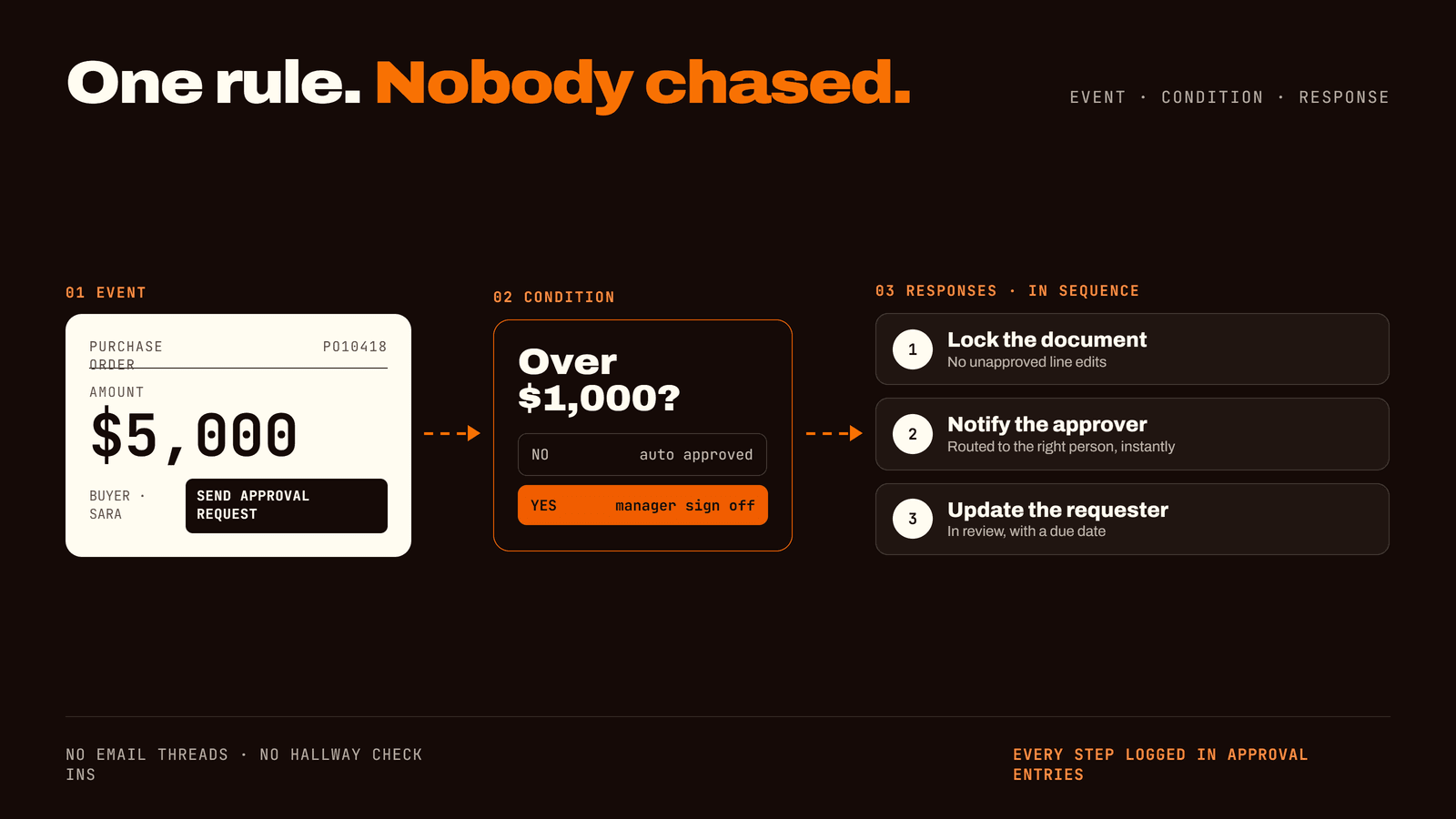
Behind every automated approval in Business Central lies a simple, predictable logic framework: Event, Condition, and Response.
- 01Events — what triggers the process: the specific action inside Business Central that tells the system to wake up and evaluate a record. Examples: a buyer clicks "Send Approval Request" on a purchase order, an account manager creates a new customer card, or an accounting clerk modifies a vendor's bank routing details.
- 02Conditions — the intelligent filter: dictates when the rule applies, filtering actions based on monetary thresholds, departmental dimensions, or custom fields so leadership isn't flooded with alerts for trivial items. Example: purchase orders under $1,000 are approved automatically, while purchase orders exceeding $1,000 require formal manager sign-off.
- 03Responses — what happens next: once the trigger fires and the conditions are satisfied, the system executes one or more automated responses in sequence. Example: a $5,000 purchase order gets locked against unapproved line-item edits, an automated notification is dispatched to the assigned approver, and the requester is notified that the order is formally in review with an assigned due date.
Approval User Setup: defining who approves what
Workflows establish when an approval is needed. The Approval User Setup establishes who holds the authority to approve it.
Within this administration console, you map out your organization's delegation of authority by defining
- 01The direct manager or supervisor for every system user.
- 02Specific approval limits for sales documents and purchase orders.
- 03Unlimited sign-off rights for executive leadership (such as the CFO, Controller, or Managing Director).
4 ways to route an approval in Business Central
Depending on whether your priority is strict compliance or rapid turnaround, Business Central offers four distinct routing mechanisms.
- 01Specific Approver: the request is routed to one designated individual, regardless of who submitted it. Ideal for sensitive administrative actions, such as changing vendor payment details or writing off bad debt.
- 02Direct Approver: the request travels straight to the submitter's immediate manager as defined in the user setup. Suits flat organizations where managers oversee all purchasing for their direct reports.
- 03Approver Chain: the request climbs step-by-step through every tier of management until it reaches someone with sufficient financial authority. Provides deep visibility for corporate environments where every management layer must formally review spend.
- 04First Qualified Approver: the system evaluates the document value and skips unnecessary intermediate managers, sending the request directly to the first person whose financial limit can cover the entire amount. Minimizes administrative handoffs and cuts approval cycles from days to minutes.
Real-world routing in action
Consider an organization with a standard procurement hierarchy.
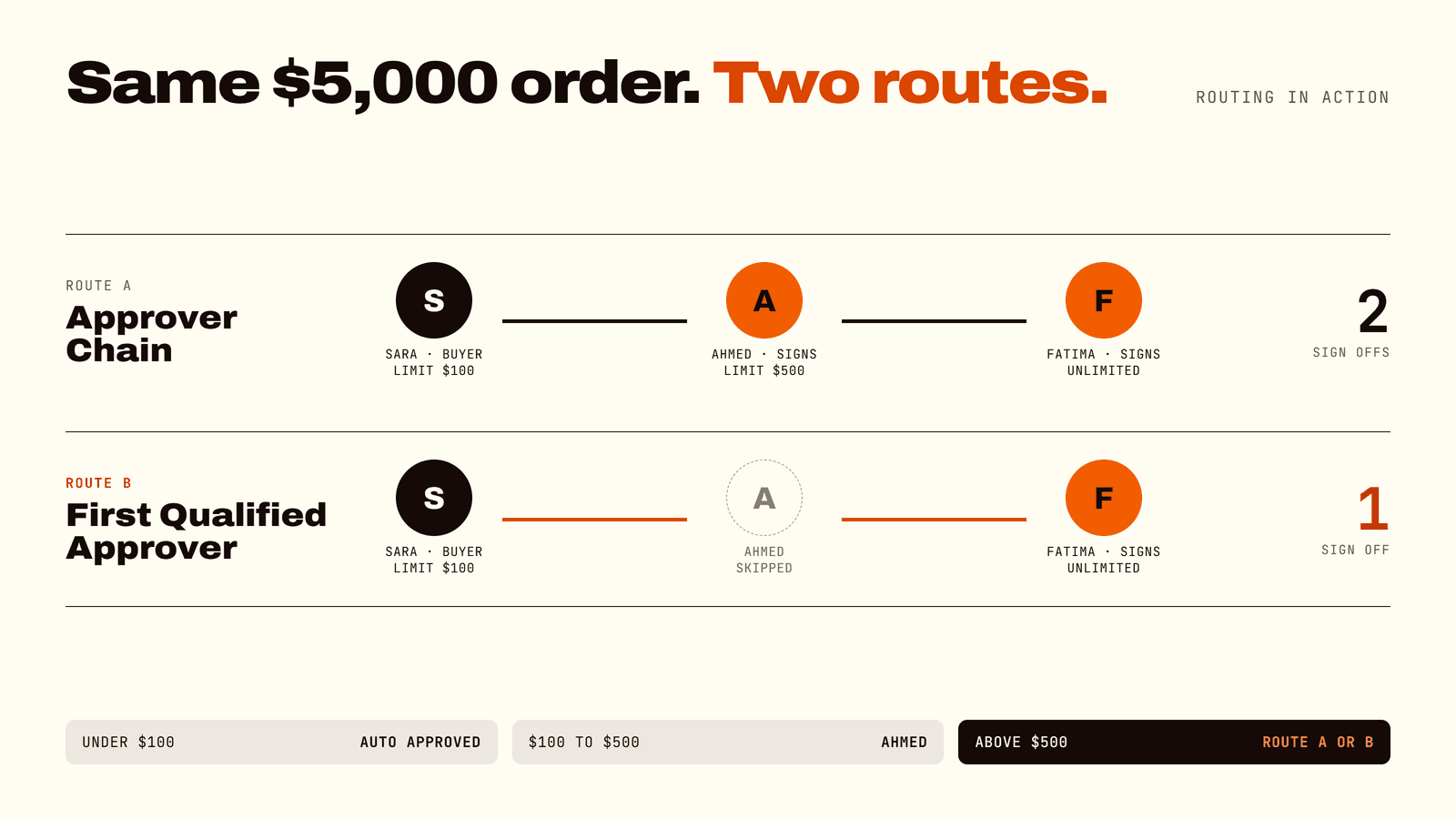
- 01Sara (Buyer): approval limit of $100. Reports to Ahmed.
- 02Ahmed (Purchasing Manager): approval limit of $500. Reports to Fatima.
- 03Fatima (Finance Director): unlimited approval threshold.
When Sara submits a purchase order, the routing behaves according to your strategic preference.
- 01Orders under $100: auto-approved instantly by the system under both models.
- 02Orders between $100 and $500: routed directly to Ahmed under both models.
- 03Orders above $500: under an Approver Chain, the order must be signed off by Ahmed first, and then re-approved by Fatima. Under the First Qualified Approver model, the system routes the order straight to Fatima's desk, bypassing Ahmed entirely to accelerate procurement.
Tracking and governance: the Approval Entries log
One of the greatest operational risks in manual procurement is the lack of an audit trail. In Business Central, every submitted request generates an immutable record in the Approval Entries ledger. At any given second, department heads and internal auditors can inspect:
- 01Who requested the approval and the exact timestamp of submission.
- 02Who currently holds the pending action item.
- 03The complete history of approvals, rejections, comments, and delegations.
This central visibility eliminates status-check emails and provides internal controllers and external auditors with a defensible, SOX-compliant transaction history.
Expanding automation beyond purchase orders
While purchase order management is the most common use case, high-performing organizations use Business Central workflows to safeguard operations across multiple departments.
- 01Customer Onboarding & Credit Governance: prevent sales reps from posting invoices to newly created customer accounts until credit terms and tax IDs are verified by the finance team.
- 02Discount Safeguards: require commercial director sign-off on sales quotes where line-item discounts exceed pre-approved profit margin thresholds.
- 03Master Data Security: trigger high-priority alerts whenever critical master records — such as employee payroll information or vendor bank details — are altered.
- 04Cash Disbursements: require dual authorization on payment journals before electronic fund transfers or wire files can be generated.
5 critical workflow mistakes to avoid
A poorly planned workflow can slow down a business faster than a manual process. Before activating automated rules, ensure your design avoids these common architecture traps.
- 01Over-Engineering Approval Chains: adding five layers of sign-off for standard supplies paralyses day-to-day operations. Keep approvals focused strictly on high-risk, high-value transactions.
- 02Stale Financial Limits: if approval thresholds are not updated when managers are promoted or job descriptions shift, critical orders stall at inactive accounts.
- 03Omitting Substitute Approvers: if an executive goes on leave without a configured backup approver, critical requisitions sit indefinitely. Always configure backup delegates in the Approval User Setup.
- 04Vague Condition Filters: rules with overly broad conditions create alert fatigue, causing managers to blindly approve documents without reviewing the underlying lines.
- 05Set-and-Forget Implementations: business structures evolve. Workflows must be audited periodically to ensure they align with organizational growth and updated financial controls.
Frequently asked questions
- 01Do I need a developer to set up approval workflows in Business Central? No. Business Central includes pre-configured workflow templates that can be customized and enabled through the standard user interface. However, if your approval logic requires multi-variable triggers, complex dimensions, or integration with external collaboration tools like Microsoft Teams or Power Automate, working with an experienced Dynamics 365 partner is recommended.
- 02Can an approver sign off on a request outside of Business Central? Yes. Through native integration with Microsoft Outlook and Power Automate, approvers can receive interactive email notifications containing document summaries, line-item details, and direct "Approve" or "Reject" buttons that update Business Central without requiring them to log into the ERP.
- 03Can I modify an active workflow while transactions are in process? To edit a workflow, you must toggle it to "Disabled." Any approval requests currently pending in the system will continue to follow the original logic under which they were submitted, ensuring that active business cycles are not broken.
- 04Can workflows automatically post documents once approved? Yes. You can chain responses together so that the final required approval automatically releases and posts the underlying document, cutting out manual accounting intervention entirely.
Stop chasing sign-offs. Automate your Business Central governance.
Dynamics 365 Business Central provides all the tools necessary to enforce bulletproof financial controls. However, the difference between an approval system that eliminates bottlenecks and one that frustrates your entire workforce comes down to process architecture.
A poorly configured approval chain stalls your supply chain; a well-architected workflow safeguards your capital while keeping your teams moving at full speed.
ForgeSolutionz specializes in designing, optimizing, and automating enterprise-grade Business Central environments. Our senior ERP consultants will
- 01Audit your current delegation-of-authority policies and operational handoffs.
- 02Identify hidden bottlenecks where orders, quotes, or payments routinely get stuck.
- 03Architect clean, role-based workflows and substitute hierarchies tailored to your exact business model.
- 04Deploy, test, and validate your approval logic to ensure zero disruption to ongoing operations.
Transform your ERP into an intelligent operational controller
Thirty minutes with a senior ERP consultant to audit your current approval setup and flag the bottlenecks worth fixing first.
Book a free workflow review